Manage users and permissions
Find a member, see their role and status, change their role, deactivate or reactivate them, make a role of your own and see who can do what.
In this article
Before you start
- You hold a role that can manage users, such as Admin.
Find and manage members
Open Admin › Access (IAM). On the Members tab, type a name or an email in the search box 1.
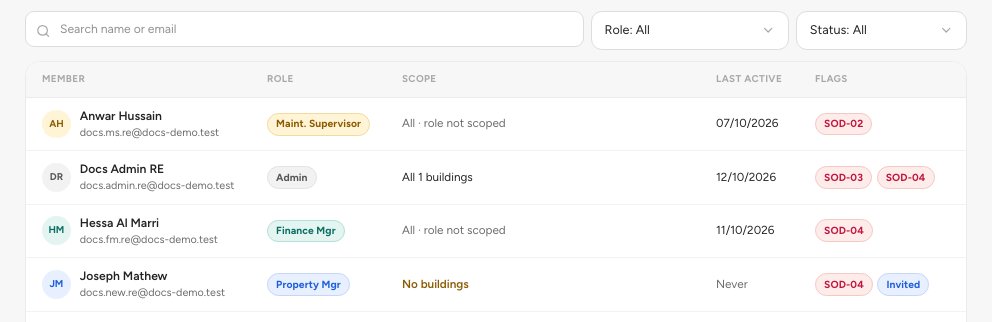
- Search by name or email
- Filter by role
- Filter by status
Narrow the list with the role filter 2 and the status filter 3.
Click a member to open their sheet. Effective access 1 says what the role lets them do in each module. Pick another role under Role 2 and the sheet shows what they would gain and lose before you Save. Deactivate 3 is at the bottom.
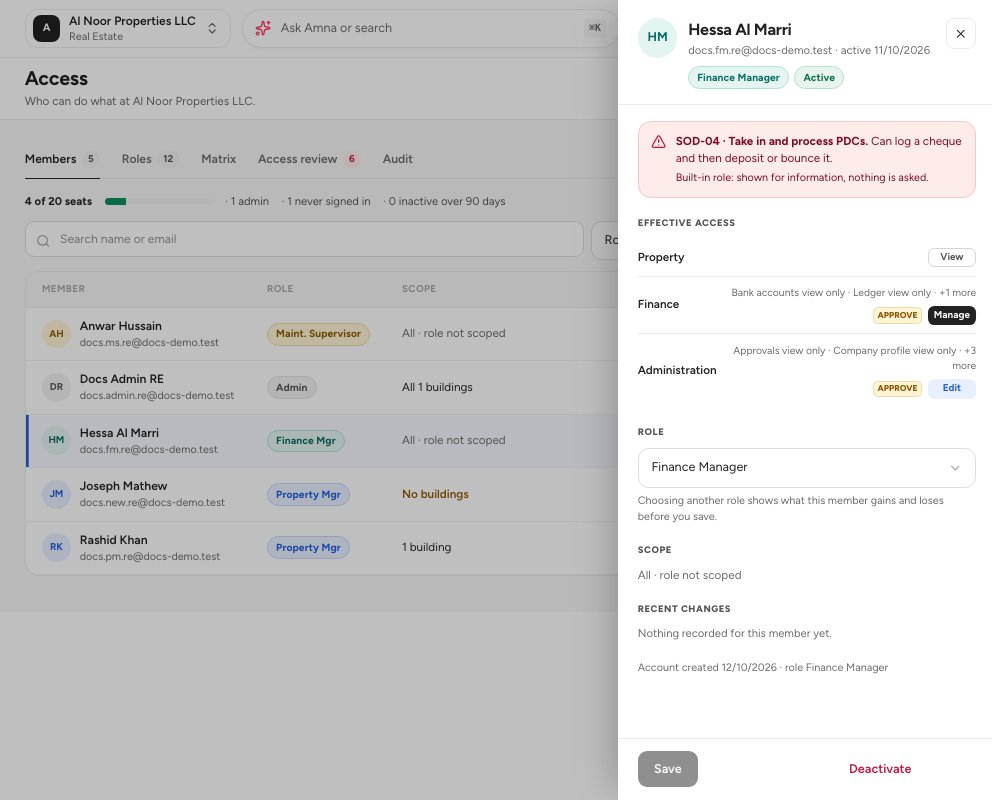
- What the role lets them do
- Change the role
- Deactivate
Confirm. A deactivated member can no longer sign in and the seat is free. Switch back on in the same sheet brings them back.
See what each role can do
Open the Roles tab 1. Each card 2 shows a role, how many members hold it and what it covers. Built-in roles are shared by every organization and cannot be edited.
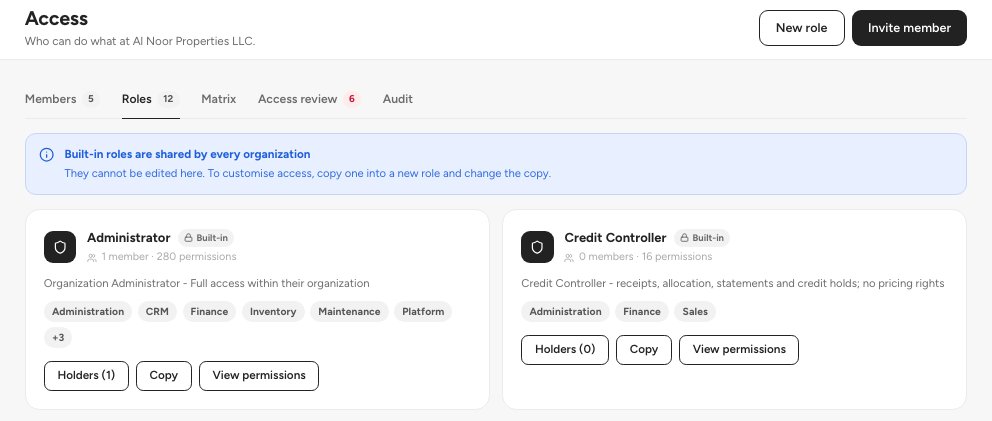
- The Roles tab
- A role card
- New role
Click New role 3 to make your own: copy a built-in role and change the copy, or start from nothing. Choose for each module whether the role can see it (View), change it (Edit) or run it (Manage), and whether it can Approve.
The Matrix tab lays every role out by module, so you can compare them on one page. Open a role to change its permissions.
To change a member's role, open the member and pick another role.
Review access and read the audit trail
The Access review tab lists what deserves a second look: roles that let one person both raise and approve the same thing, people who hold powerful access and have not signed in for months, managers who have nothing assigned to look after, and roles nobody uses. Each finding has the one action that deals with it. The Audit tab records every change to roles, permissions, members and what each can reach, with who made it and, where it was asked for, the reason. Export CSV downloads the same selection you filtered.
Tip — The user cap counts active and invited staff. The Members tab shows N of 20 seats.
FAQ
Why can I not reactivate someone?
Every seat is taken. Deactivate another member first, or talk to us about a bigger plan.
Can I edit a built-in role?
No. Built-in roles are shared by every organization. Click Copy on it in Access › Roles and change the copy.
What is a separation-of-duties warning?
A role that lets one person do both halves of something that should have two people, such as raising and approving a work order. You can still save it: the app asks for a reason and records it in Audit.
Related guides
Was this helpful?