Track and collect rent invoices
See what each tenant owes, record the payments you receive and chase the ones that are late.
In this article
Getting started
Rent invoices are in Finance › Rent invoices. Ultra BMS creates the invoices of a lease for you when you finish tenant onboarding and when a lease is renewed, one for each payment in the schedule. You only create an invoice by hand for an extra charge. When a post-dated cheque clears, the payment is recorded on its invoice automatically.
Before you start
- Your role is Admin or Property Manager.
- The tenant has finished onboarding, which creates the lease and its rent invoices.
Steps
Open Finance › Rent invoices. The card at the top shows how much of this month’s rent is billed and collected. Use the status tabs 2 (All, Paid, Outstanding, Overdue, Drafts), the month, method and amount filters, or the search box to find an invoice. Click an invoice number 3 to open it. Create invoice 1 raises one by hand.
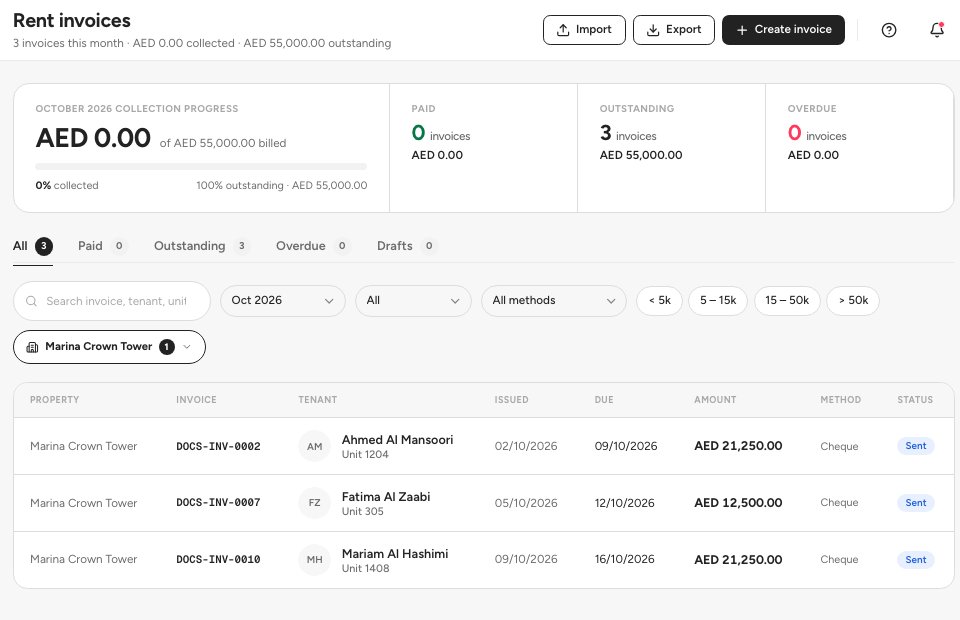
- Create invoice
- Status tabs
- An invoice
On the invoice page, check the amount, the lease it belongs to and the payment instructions the tenant sees. Send reminder 2 emails the tenant, Download PDF 3 and Print give you the tax invoice, and Record payment 1 records money you received.
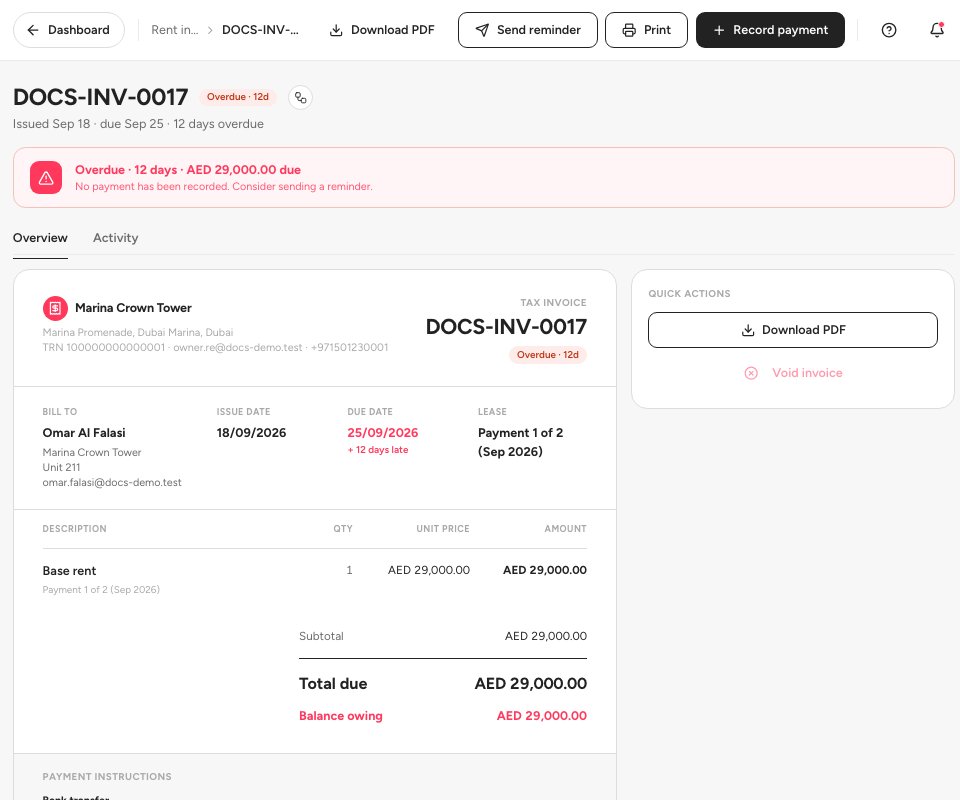
- Record payment
- Send reminder
- Download PDF
Record the payment. Enter the Amount 1. The page shows the outstanding balance above it, so enter less than that for a part payment. Choose the Payment method 2 (Cash, Bank Transfer, Card, Cheque or Post-Dated Cheque), the Payment date and a Transaction reference such as the bank transfer reference or the cheque number. You can attach proof of payment of up to 10 MB. Click Record payment 3.
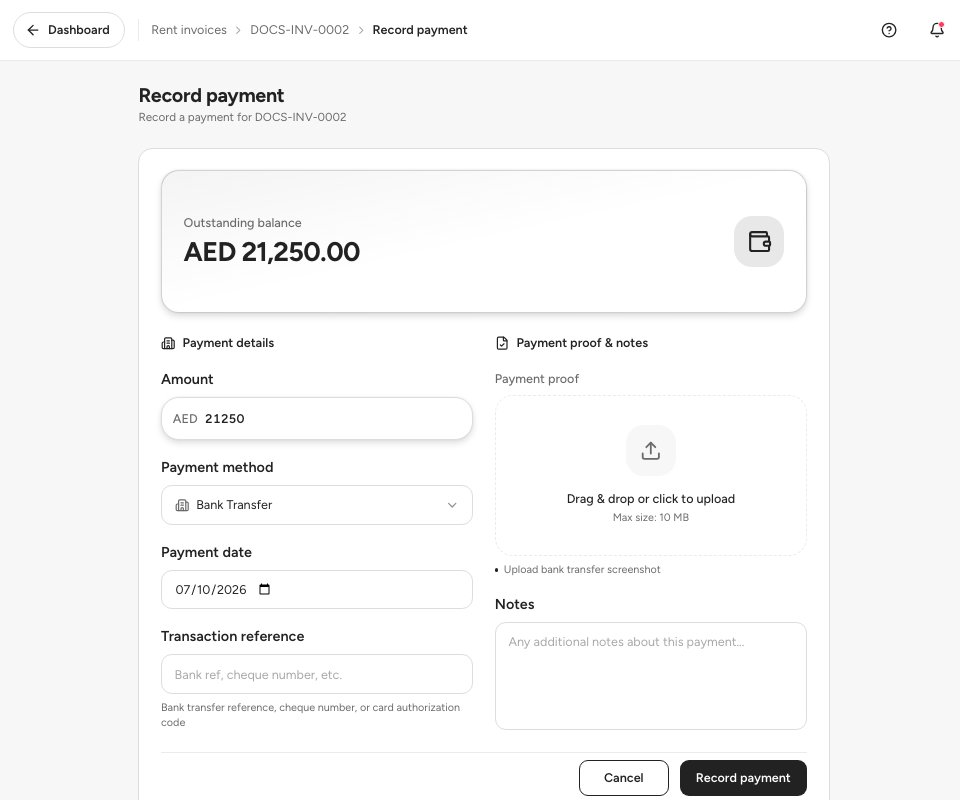
- Amount
- Payment method
- Record payment
To bill something that is not in the lease, click Create invoice. Step 1, pick the tenant 1. Step 2, enter the Base rent, Service charges, Parking fees and any Additional charges 2. The preview shows the total and a due date 30 days from today. Click Create invoice 3.
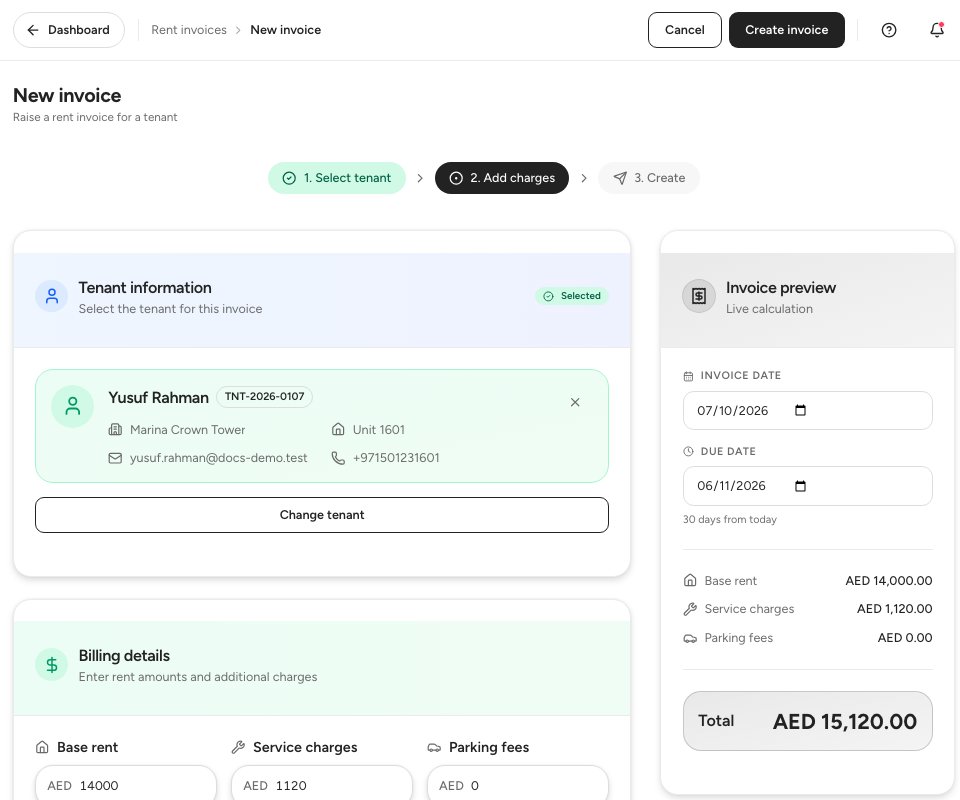
- The tenant
- The base rent
- Create invoice
Tip — Do not record a payment by hand for a cheque you hold. Mark the cheque Cleared in Banking › PDC management and Ultra BMS records the payment on the invoice for you.
Important — An invoice that was raised by mistake can be voided from Quick actions › Void invoice. A voided invoice no longer counts as money owed.
Statuses
Ultra BMS marks an invoice Overdue the day after its due date if it is still Sent or Partially paid.
FAQ
Why is there an invoice for a month that has not started?
Ultra BMS creates every instalment of the lease at onboarding. The later ones stay Draft until they are issued.
A tenant paid part of an invoice. What do I do?
Click Record payment and enter the amount you received. The invoice becomes Partially paid and shows the balance owing.
Where do I see the rent I collected for an owner?
In Finance › Reports › Finance reports. See the owner reports guide.
Related guides
Was this helpful?