Approvals and workflows
Route a document through conditions and approvals before it goes ahead, and decide the items waiting on you.
Before you start
- A role that can read workflows. Creating or changing a workflow needs a role that can manage them.
How it works
A workflow starts when something is submitted, for example a purchase order. Its steps run in order: a Condition checks a value, an Approval waits for everyone holding a role, and a System action does something automatically. An item waiting for your role appears in your Approvals inbox.
See your workflows
Open Admin › Workflows. The Workflows tab 1 lists each one with its module, trigger, steps, runs in the last 30 days, average cycle and whether it is Live 2.
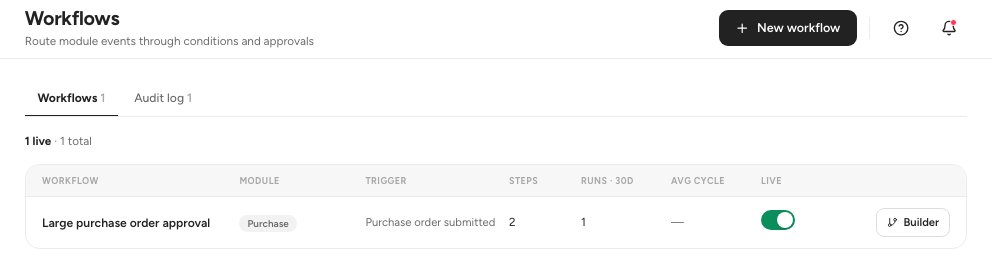
- Workflows and Audit log tabs
- Live switch
- New workflow
Use the switch to Pause or Activate a workflow. The Audit log tab shows every run.
Create a workflow
Click New workflow 1. Give it a Workflow name 2 and choose the Trigger event 3.
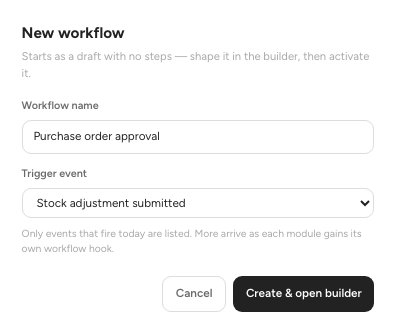
- New workflow
- Workflow name
- Trigger event
Add steps in the builder 1. For a Condition, choose a field, an operator and a value. For an Approval, choose the Approver role, the SLA (hours before escalation) and Escalate to.
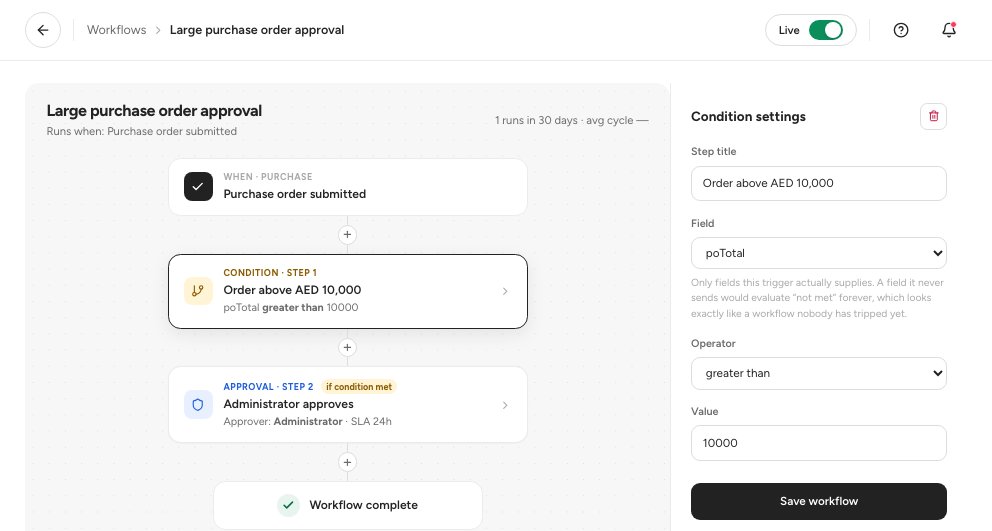
- The steps
- Settings of the selected step
- Save workflow
Click Save workflow 3. It appears once you change something. Then turn on the Live switch at the top right to activate it. A new workflow starts as a draft with no steps.
Decide an approval
Open Home › Approvals 1. Each row shows the Item, its Detail, the Workflow and Waiting since.

- An item waiting on your role
- Approve, Reject or Return
Click Open to read the document first. Then click Approve, Reject or Return 2 (send it back to the person who submitted it), add a comment (optional when you approve), and confirm.
Important — When a workflow is live for a trigger, its condition step replaces the flat approval threshold that applied before. Pause the workflow to go back.
FAQ
The Workflows row is missing.
Workflows are part of some plans only, and need a role that can read them. Open Subscription & billing to see your plan.
Nothing shows in Approvals.
The inbox says Queue clear until a live workflow routes an item to your role.
Related guides
Was this helpful?