Add properties and units
Set up each building you manage, then add its units so you can quote, lease and bill them.
In this article
Getting started
A property is a building or a community. A unit is one apartment, villa or shop inside it. Everything else in Ultra BMS hangs off a unit: its quotes, its lease, its rent invoices and cheques, and its maintenance jobs. Properties live in Property › Portfolio › Properties.
Before you start
- Your role is Admin or Property Manager.
- The owner of the building is recorded as a property owner, so you can pick them in the wizard.
Steps
Open Property › Portfolio › Properties. Each card shows the building, how full it is and how many work orders are open. Use the search box 2 or the filters for emirate, type, occupancy and year built to narrow the list, and switch between Cards and List. Click a card 3 to open the property. To create a new one, click Add property 1.
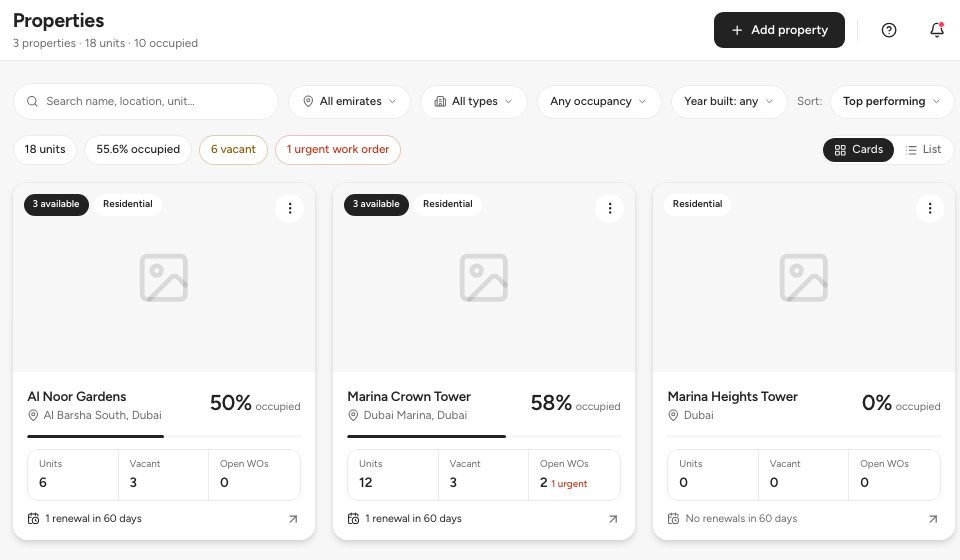
- Add property
- Search and filters
- A property card
Fill in the Add property wizard. It has four steps: Basics (name, type, year built, floors, total units, owner, property manager), Location (address, emirate, city), Compliance (government registration number, insurance, DEWA and other utility accounts) and Review. Fields marked * are required. Use Save as draft to finish later.
Open the property to see its Overview: occupancy, annual contracted rent, rent received this year and open work orders, then the Unit mix by type. The Units tab 1 lists every unit. Click Add unit 2 to add one, or Edit property 3 to change the building’s details.
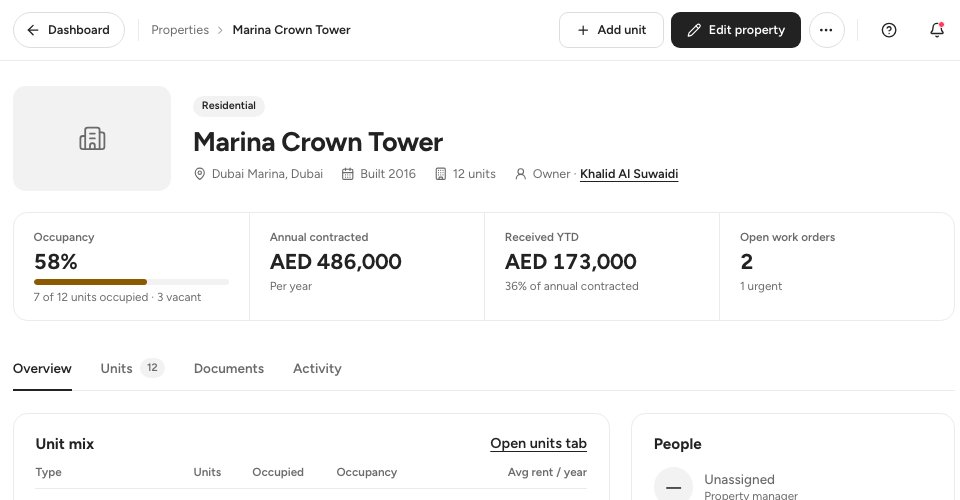
- The Units tab
- Add unit
- Edit property
Add the unit. Enter the Unit number 1 as it is labelled in the building, choose the Unit type, and give the Size and the Annual rent 2 in AED. Bedrooms and bathrooms follow the unit type. Choose the starting Status, then click Add unit 3.
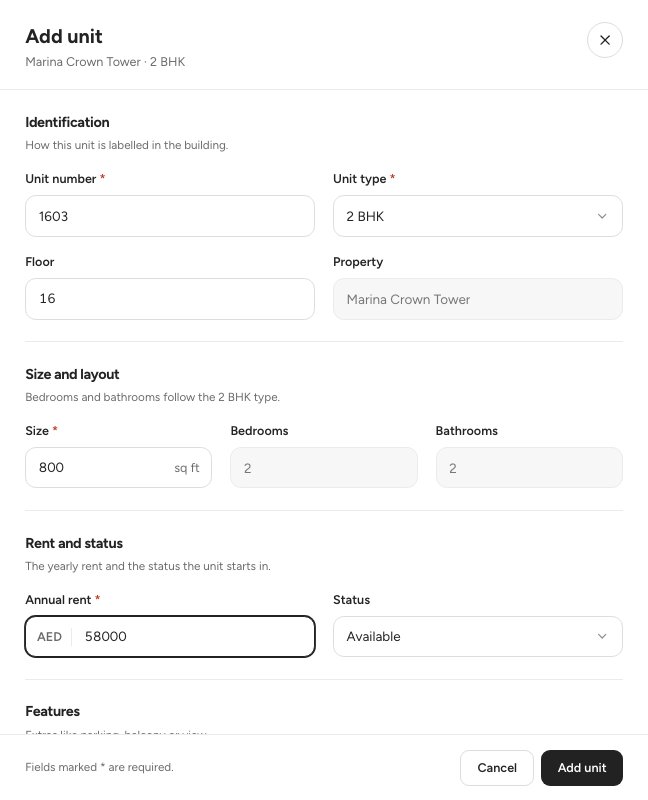
- Unit number
- Annual rent
- Add unit
Open a unit from the Units tab to see everything about it in one place: its rent and deposit, the current lease with the renewal window, the maintenance jobs and the activity. Change status 1 moves the unit to another status that Ultra BMS allows from its current one. Tenant & lease 2 shows who lives there, and Open lease 3 takes you to the contract.
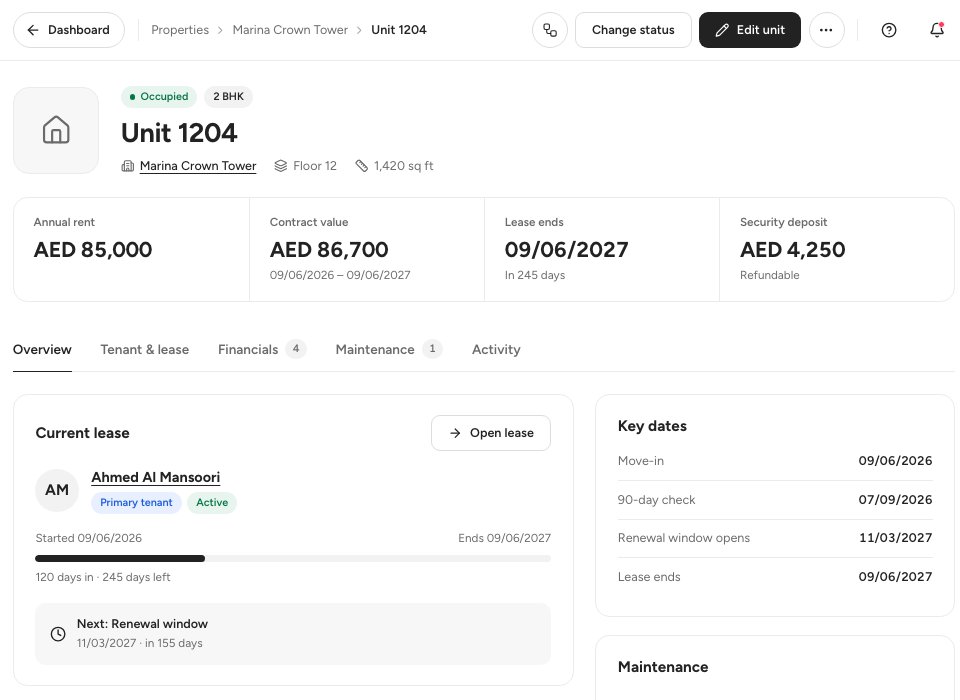
- Change status
- Tenant & lease tab
- Open lease
Tip — A unit that is held for a quote you converted to a contract shows Reserved, and an unleased unit can be marked Under maintenance by hand. A unit with an active lease shows Occupied.
Unit statuses
FAQ
Can I manage buildings that belong to different owners?
Yes. Pick the Property owner for each building in the wizard. You choose which building you are working in from the property selector at the top of the left panel, and most pages show that building’s data.
Does the unit type change the rent?
No. The type sets the bedrooms and bathrooms. You always enter the Annual rent yourself, and a quote can offer a different rent.
How do I switch to another building?
Use the property selector at the top of the left panel. It shows the building you are working in and its number of units, and most pages then show that building’s data.
Related guides
Was this helpful?