Send email from your own address
Connect your own mail server so invitations, reminders and documents come from your company address.
In this article
Before you start
- The SMTP details from your mail provider, and a role that can edit settings.
Connect your mail server
Open Admin › Settings, then the System tab, then Email sender. The chip at the top of the SMTP configuration card says Not configured 1 until you save a sender.
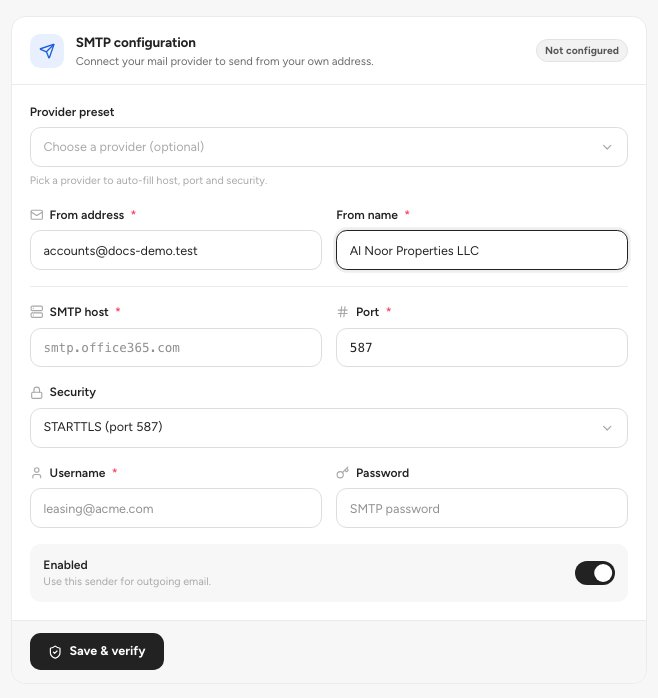
- Not configured until you save a sender
- Provider preset
Pick a Provider preset 2: Microsoft 365 / Outlook, Gmail / Google Workspace or Custom. A preset fills the host, port and security.
Enter the From address 1 and From name, the SMTP host, Port and Security 2, and your Username and Password.
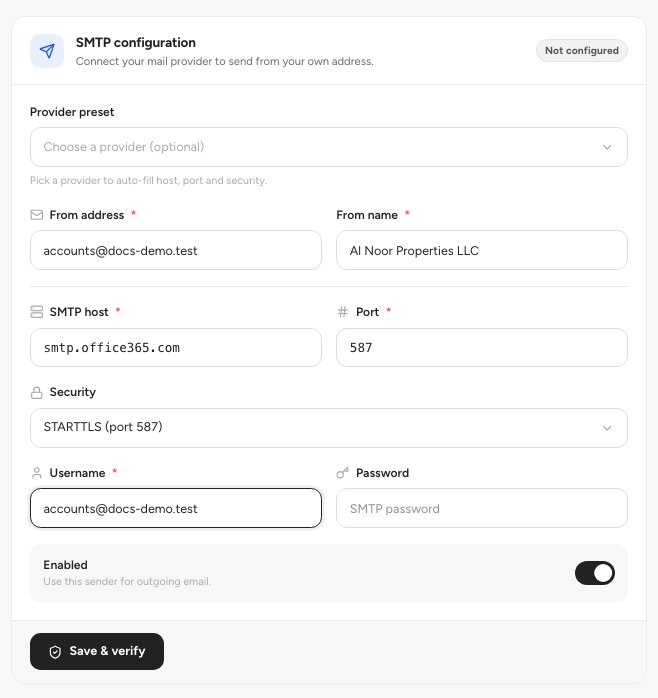
- From address
- SMTP host, Port and Security
- Save & verify
Leave Enabled on and click Save & verify 3. The app tests the connection and the status card on the right changes to Verified & active.
Click Send test on the status card to send yourself a test email.
Important — Your SMTP password is encrypted when saved and never shown again. When you edit the sender, leave Password empty to keep the saved one.
Tip — Remove sender deletes your settings. Emails then go out from the platform default sender until you configure your own again.
FAQ
It says Not verified.
The Last error box shows what the mail server answered. Check the host, port, security, username and password, then click Save & verify again.
Do I have to set this up?
No. Without it, email goes from the platform default sender.
Related guides
Was this helpful?