Find your way around
The left rail, the menu panel, the page header and your user menu: the four things you use on every screen.
The frame around every screen
The left rail 1 has one icon per module. Click an icon to open that module.
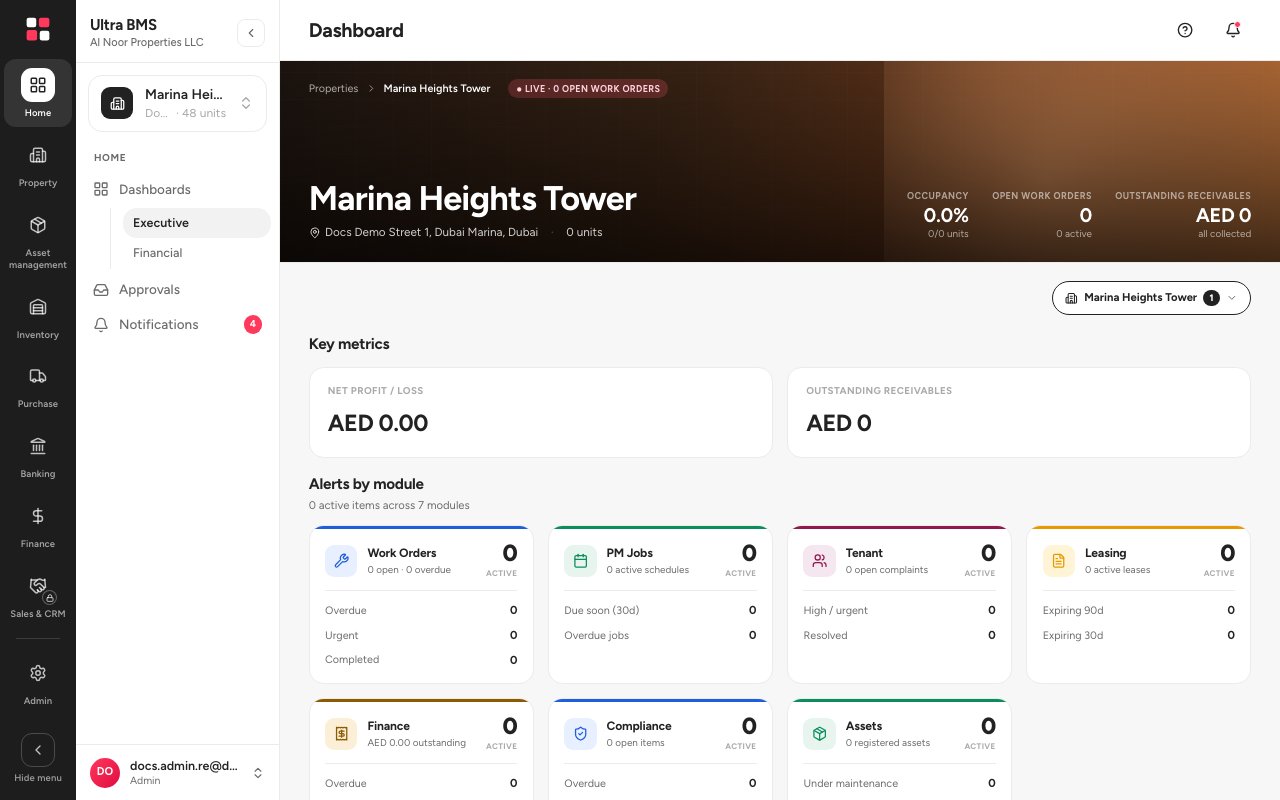
- Left rail
- Menu panel
- Page header
- Help and Notifications
The menu panel 2 lists the screens of that module, in groups. Click a row to open it.
The page header 3 shows where you are, and holds the main buttons of the page.
Help and Notifications 4 sit at the right end of the header.
Tip — Pointing at a rail icon previews that module's menu without leaving your screen. Click Hide menu at the bottom of the rail to give the page more room; point at the rail to peek at the menu again.
Your user menu
At the bottom of the menu panel, click your name 1.
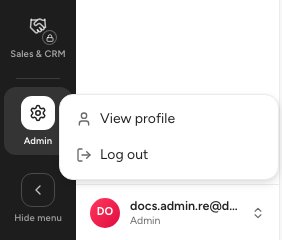
- Your name and role
- View profile
- Log out
Choose View profile 2 to change your own details, or Log out 3.
List screens work the same way
Most modules open on a list: a table with a search box, filters, and a primary button at the top right of the header to add a record. Click a row to open the record.
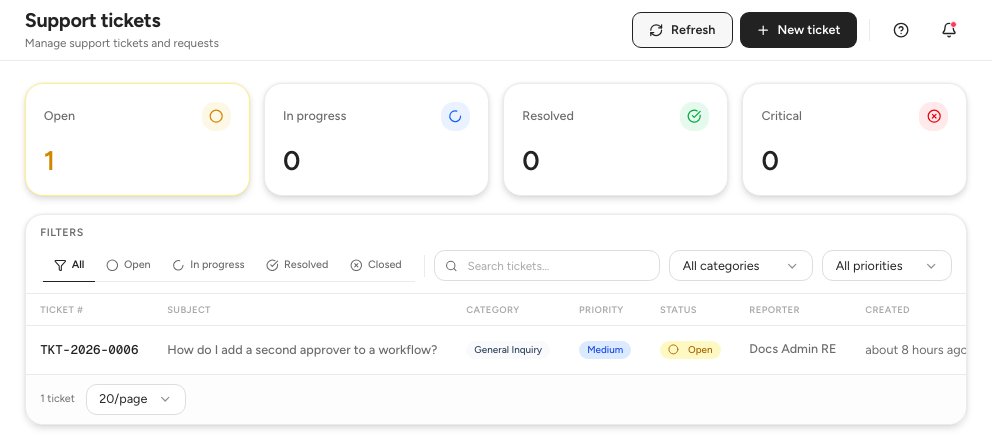
- Search
- Filters
- The main button of the page
Ask Amna
The round Amna button at the bottom right opens the assistant on any screen. See Ask Amna for what it can do.
FAQ
A menu row I expected is missing.
Rows depend on your role and on what your plan includes. Ask an administrator to check your role in Access.
A row shows a lock.
That module is not part of your current plan. Open Subscription & billing to see your plan and request an add-on.
Related guides
Was this helpful?