Subscription, billing and add-ons
See your plan, request an add-on, watch your usage, read your invoices and learn how to pay.
In this article
Before you start
- An administrator role. The screen is for your administrators.
Your plan
Open Admin › Settings, then the Organization tab, then Subscription & billing. The Base plan card 1 shows your plan, its status and when it renews.
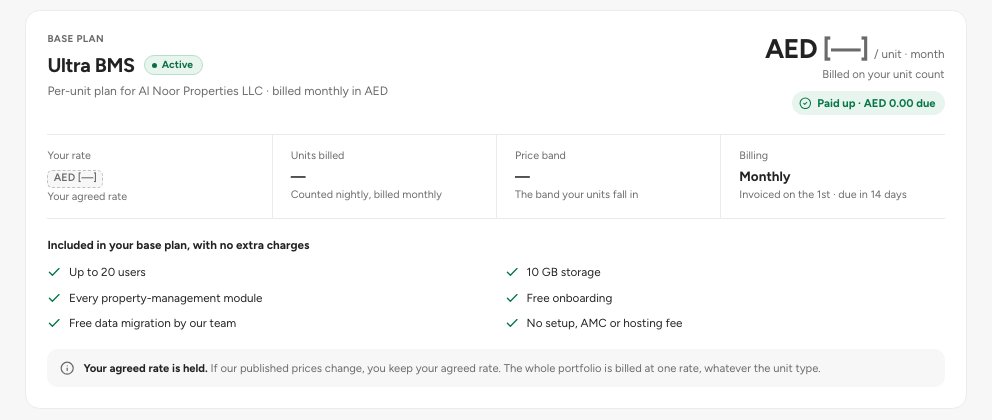
- Base plan
- Status of the plan
The chip 2 reads Active, Past due, Suspended and so on. A trial shows a Trial card instead, with the days left.
Request an add-on
In Add-ons, find the one you want under Available for your plan 1.
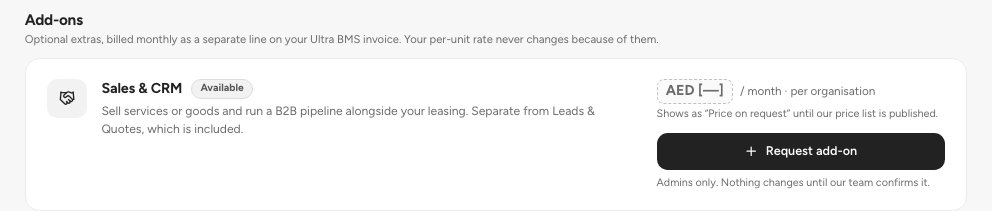
- An add-on you can request
- Its state
Click its request button, check the price and start, and click Send request 1.
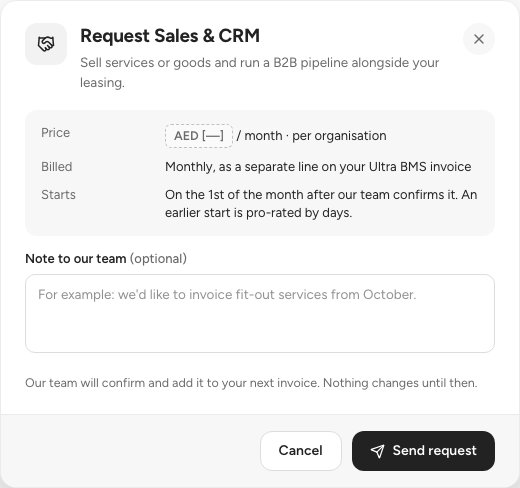
- Send request
- What the add-on costs and when it starts
The card changes to Requested. Nothing changes until our team confirms it, and then it is added to your next invoice.
Tip — On the top plan the Available for list can be empty, because every add-on is already part of the plan. The On your plan group then reads that everything you use today is part of it. Nothing needs requesting.
Usage, invoices and payment
Usage 1 shows users against your limit, storage and your next invoice. Invoices 2 lists every invoice with its status.
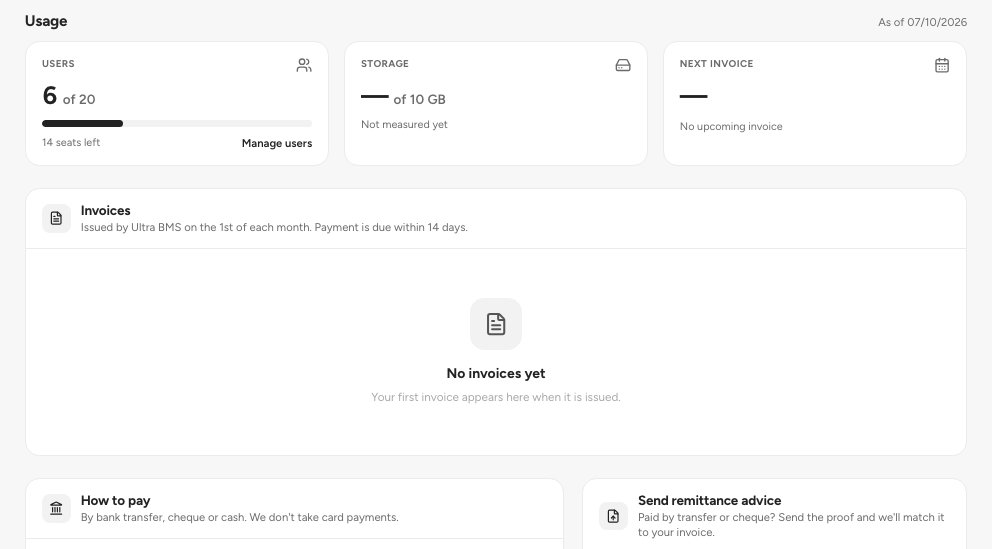
- Usage meters
- Invoices
- How to pay
How to pay 3 gives the bank details, cheque payee and cash instructions. We do not take card payments.
Paid by transfer or cheque? Use Send remittance advice: pick the invoice, enter the amount, attach the proof and click Send to billing.
Important — Prices exclude VAT where applicable. All amounts are in AED.
FAQ
I cannot open this screen.
It is for administrators. Ask yours to open it or to change your role.
How do I end an add-on?
Click its removal request. Our team confirms the end date, and you keep the add-on until then.
Are we ready for UAE e-invoicing?
E-invoicing becomes mandatory on 1 July 2027 for businesses under AED 50 million in revenue (1 January 2027 above it). Ultra BMS records each invoice's e-invoicing status today. Sending invoices through an Accredited Service Provider is on our roadmap. Ask us for the current status.
Related guides
Was this helpful?