Inventory: items and stock levels
Keep a list of the items you hold, see what is running low, adjust a stock level with a reason, and plan what to reorder.
In this article
Before you start
- A role that can use Inventory. Reorder planning needs a plan that includes the advanced inventory tools.
The item list
Open Inventory in the left rail and choose the first row, the one that opens the screen titled Inventory 1.
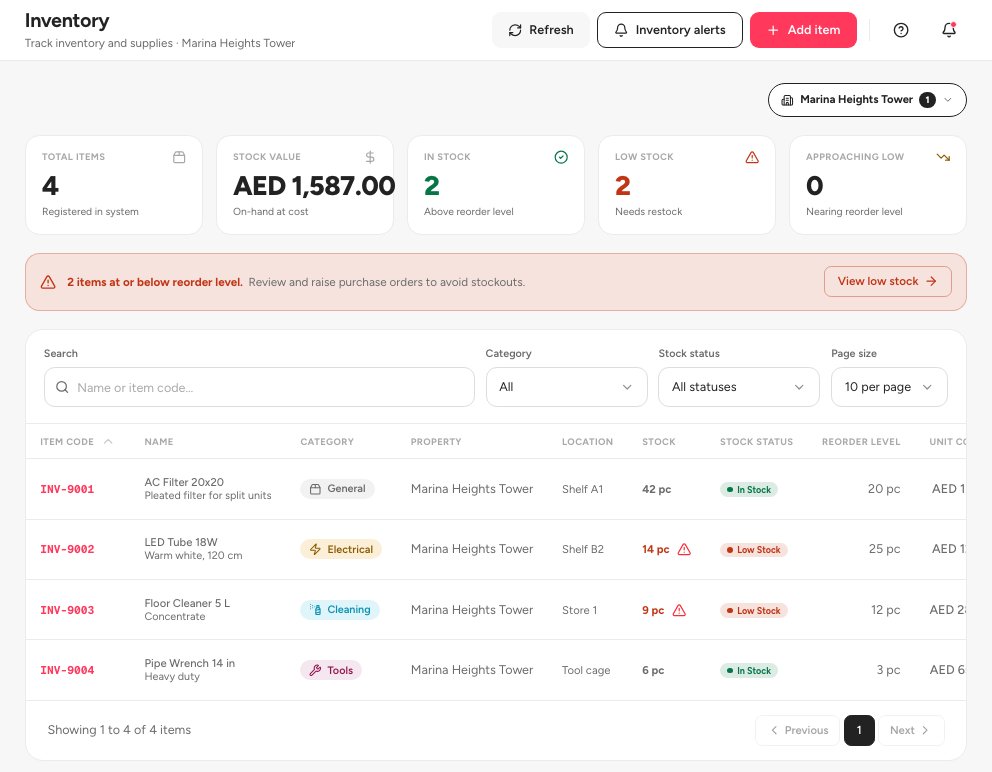
- The Inventory screen
- Cards by stock level
- Add item
The cards 2 count Total items, Stock value, In stock, Low stock and Approaching low. Click a card to filter the table.
Click Add item 3 to create an item, or Inventory alerts to set who is told when stock runs low.
Add an item
The form has four sections: What is it? (name, description, category, and the unit it is Counted in), Where does it live? (where it is kept and the storage location), Stock & reorder point (current or opening stock, the reorder level and shelf life) and Cost & supplier (unit cost and the supplier).
Adjust a stock level
Click an item to open it. Its tabs are Overview, Transactions, Cost layers and Activity.
Click Adjust stock 1, the main button of the page.
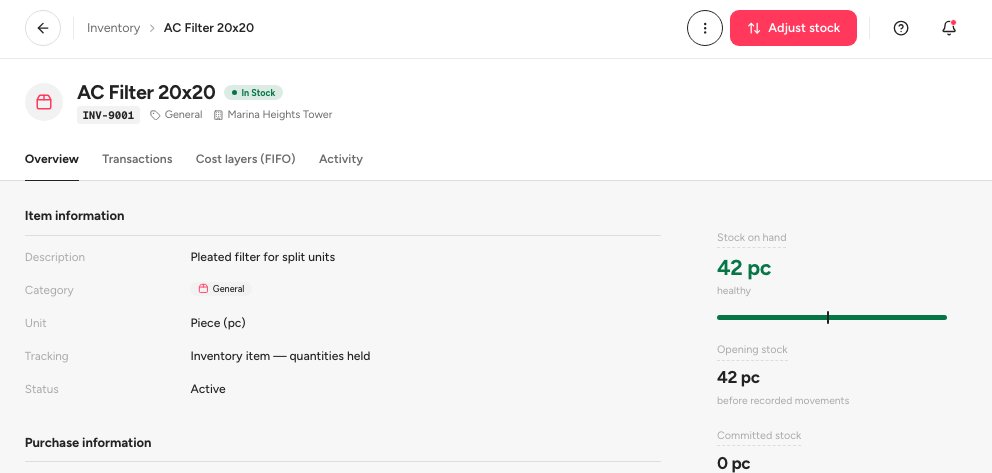
- Adjust stock
- Overview, Transactions, Cost layers and Activity
Choose a Reason 1 and enter the quantity 2. The dialog shows the Current stock and the New stock level.
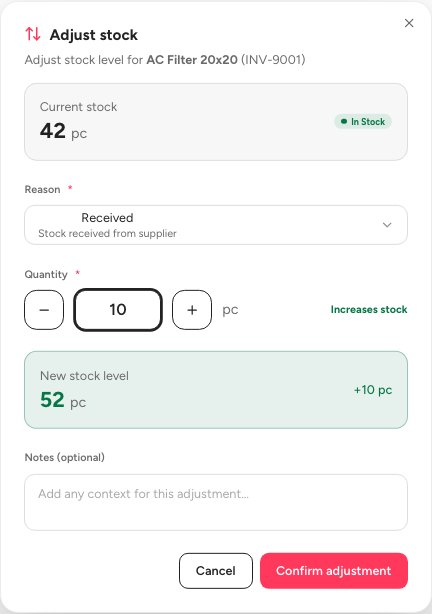
- Reason
- Quantity
- New stock level
Confirm. The change is recorded in the item's Transactions and Activity tabs.
Important — A Damaged or Correction adjustment worth more than your approval threshold waits for approval and does not change the stock until someone approves it. Set the threshold on the Inventory alerts screen and decide waiting items on Adjustment approvals.
Low-stock alerts and reordering
Open Inventory alerts from the Inventory screen. Add the Recipients 1 who should be emailed, and choose the Alert frequency.
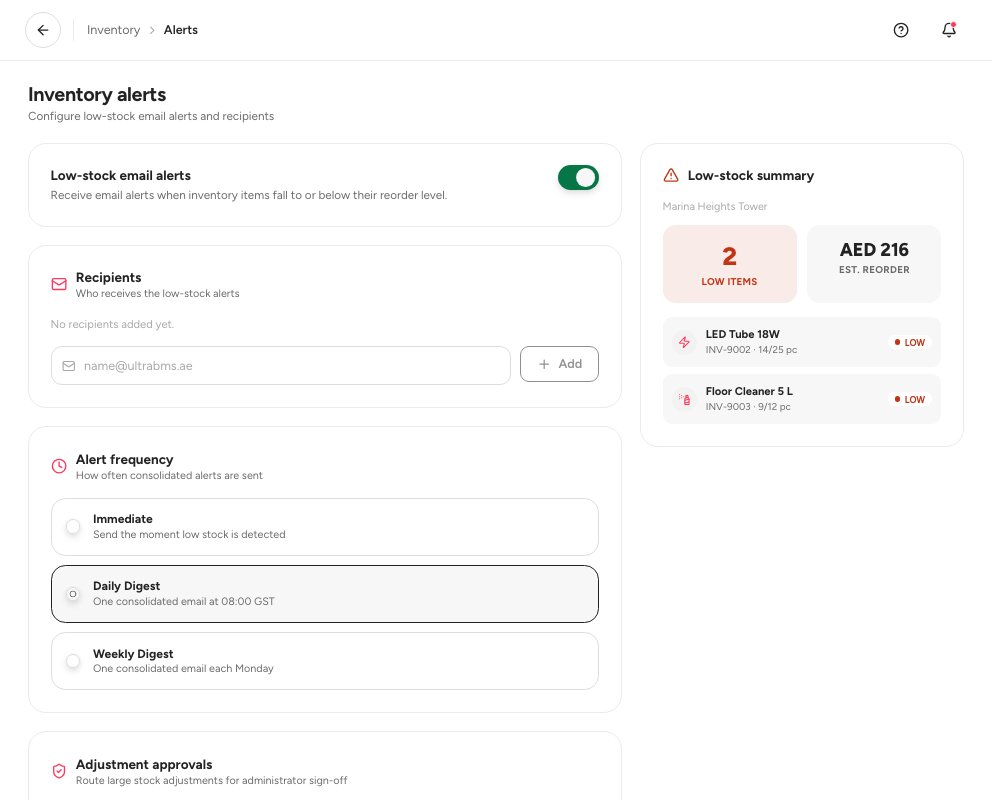
- Recipients
- Alert frequency
- Adjustment approvals
Open Reorder planner 1. It lists the low and approaching-low items with a suggested order quantity.
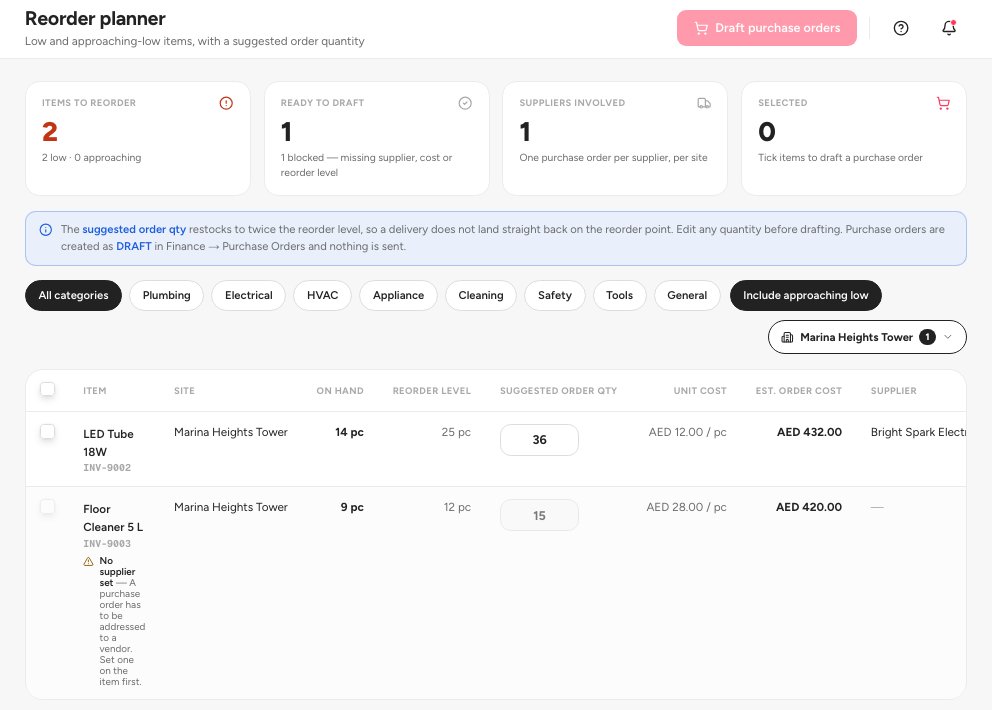
- Low and approaching-low items
- Draft purchase orders
Tick the items to buy and click Draft purchase orders 2. Review the drafts, then see Purchase orders to send them.
What this does to stock and the ledger
An adjustment changes the quantity you hold and, for most reasons, posts a journal at the item's unit cost. The amount is the quantity times the unit cost. A movement worth nothing posts nothing. An adjustment that is waiting for approval changes neither stock nor the ledger until it is approved.
Where it sits in the chain
Items are the middle of the buying chain: Vendor, then Purchase order, then Goods receipt, which adds the quantity to the item and its value to your stock account. Stock is relieved when it is used or sold, and the Reorder planner turns low stock back into draft purchase orders. See Purchase orders and What posts to your accounts automatically.
FAQ
Why is an item not marked Low stock?
The status comes from the Reorder level you set on the item. Check that it is set and that it is above the quantity you hold.
Can I stop using an item without losing its history?
Yes. Open it, choose More, then Deactivate. Its history stays.
Where do I change the unit an item is counted in?
Open Units & conversions from the Inventory menu to manage units and purchase packs.
Related guides
Was this helpful?