Capture leads and send quotes
Record every enquiry, quote the unit and its cheque schedule, and keep the whole pipeline on one board.
In this article
Getting started
The letting pipeline lives in Property › Leasing › Leads & quotes. A lead is a person who asked about a unit. A quote is the offer you send them: the unit, the rent, the fees, the deposit and the cheques. When the prospect accepts, you turn the quote into a contract with tenant onboarding.
Before you start
- Your role is Admin or Property Manager.
- The unit you want to quote exists in Property › Portfolio › Properties and is not leased.
Steps
Open Leads & quotes. The board has a column for each stage: New enquiry, Quote sent 2 and Lease signed. The tiles on top show this month’s new leads, the value in the pipeline, the win rate and the average days to close. Click a lead card 3 to open it. Use the filters for the building, the source and Expiring soon, or switch to List. To add a person, click Capture lead 1.
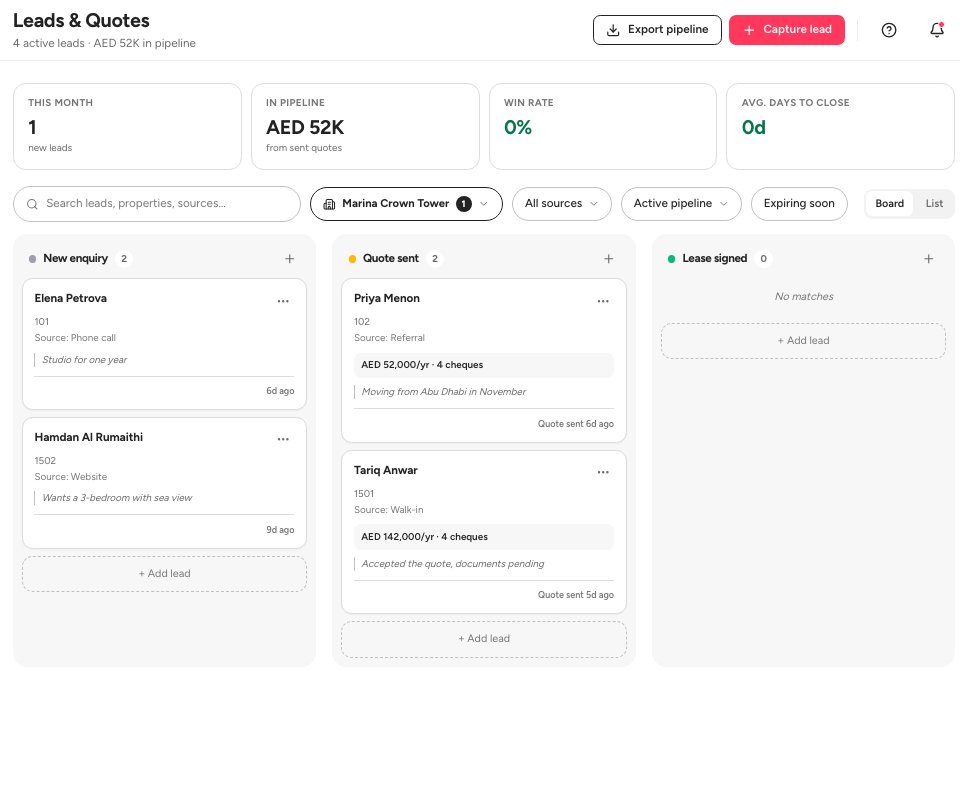
- Capture lead
- The Quote sent column
- A lead card
Capture the lead. Enter the Full name 1, the Email address and the Contact number in the +971 format, and choose the Lead source 2: Website, Referral, Walk-in, Phone call, Social media or Other. Add the unit they want, their move-in date and budget if you know them, and who owns the lead. Click Create lead 3, or Save as draft. The lead lands in New enquiry.
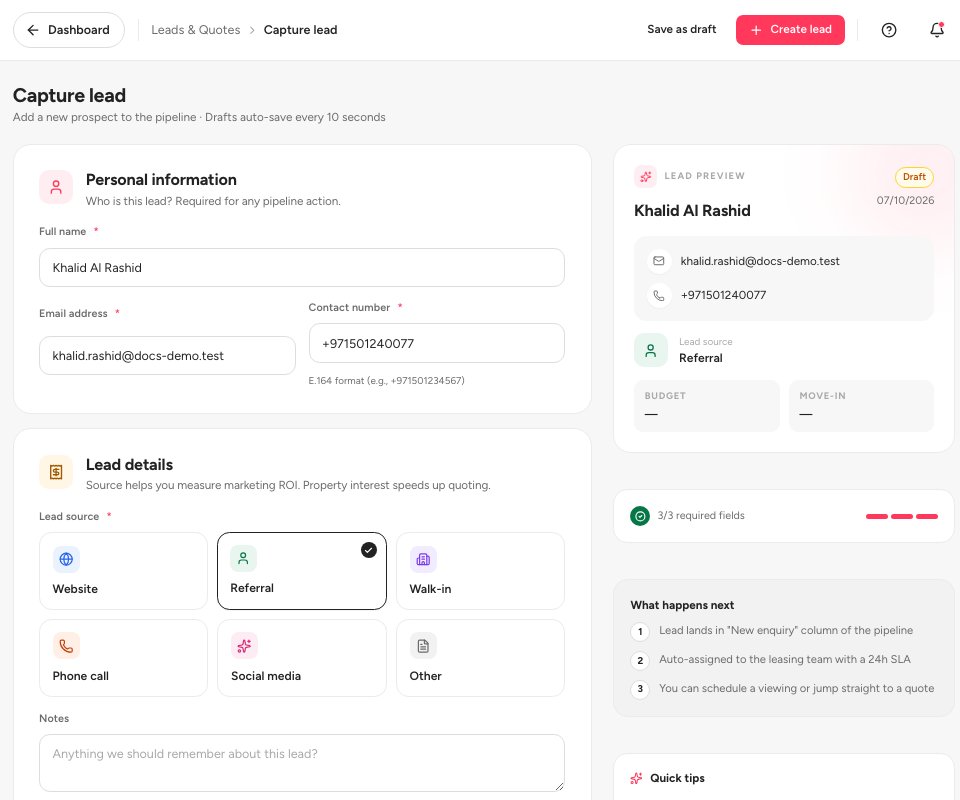
- Full name
- Lead source
- Create lead
Start the quote. Open the lead and click New quotation. Step 1, Lead & Unit, shows the prospect, the Issue date and the Validity date 1, and the units of the building you are working in. Pick the unit 2 and click Continue to identity 3. Step 2, Identity, asks for the Emirates ID and passport details of the prospect, and step 3, Pricing, Fees & Deposits, for the rent, the lease term, the deposits and the fees.
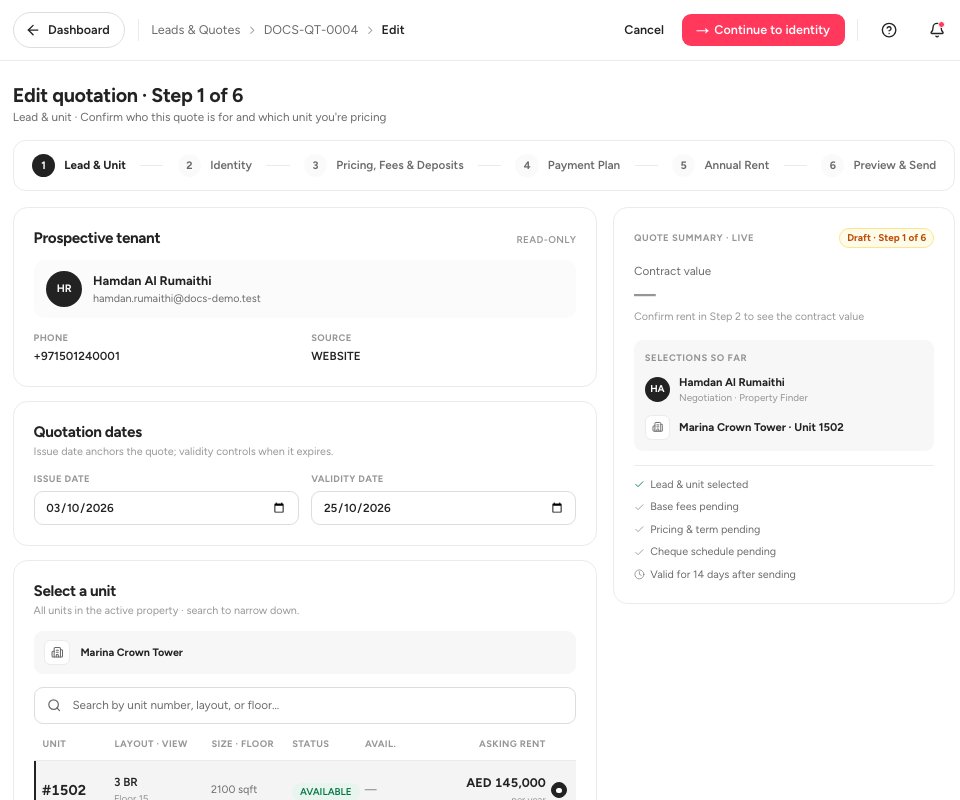
- Validity date
- The unit
- Continue to identity
Set how the tenant pays. Step 4, Payment Plan, asks whether the administrative charges are paid Separately from the annual rent or Together with it. In step 5, Annual Rent, choose the Payment mode 1 (Cash, Cheque, Bank transfer or Card), the # of installments 2 and the First due date 3. The rent schedule below splits the annual rent and lets you adjust any date or amount, as long as the sum equals the annual rent.
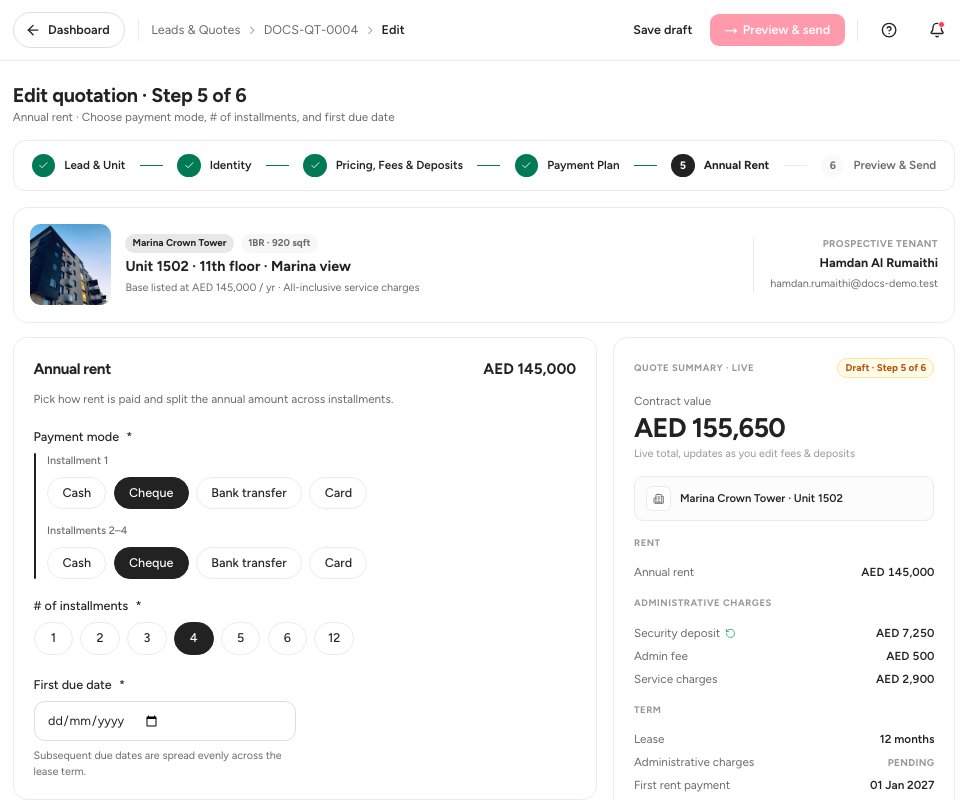
- Payment mode
- Number of installments
- First due date
Review and send. Step 6, Preview & Send, shows the quotation the way the tenant sees it, with the pricing, the total contract value and the payment schedule. Click Send quotation. The lead moves to Quote sent. When the prospect accepts, the quote shows Accepted 2. Open it and click Convert to contract 1, which reserves the unit and starts tenant onboarding. Print preview 3 opens the printable version.
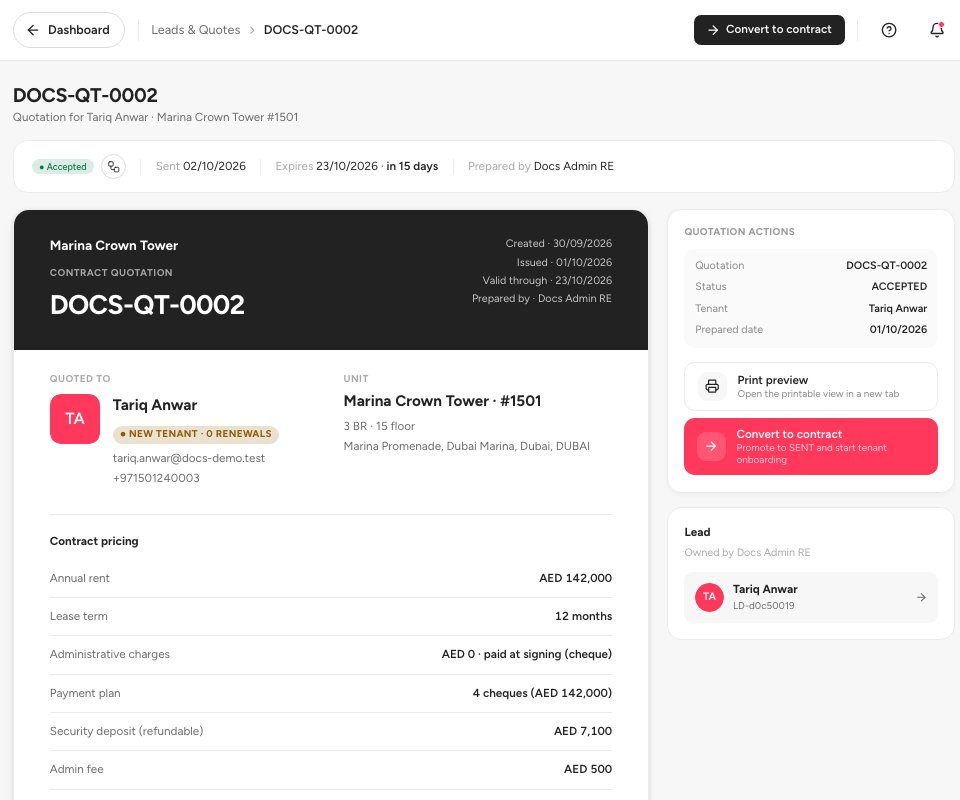
- Convert to contract
- The quotation status
- Print preview
Tip — A quote is saved as a draft as you work: the footer says Draft autosaved. Close the page and come back to Leads & quotes, open the lead and continue where you stopped.
Important — A quote is valid for the period between its Issue date and Validity date. Quotes that are about to lapse show under Expiring soon. Send a new quote for a prospect whose quote has expired.
Quote statuses
FAQ
Does a quote hold the unit for the prospect?
Not by itself. The unit is held when you click Convert to contract: it shows Reserved until onboarding finishes or the reservation lapses.
Why does the quote ask for the Emirates ID before I send it?
The quote carries the details the lease needs, so tenant onboarding starts with them filled in. Upload the documents in step 2.
Where do I follow a lead after I send the quote?
Open the lead. It shows the pipeline from Enquiry to Signed, its quotations and a next follow-up date you can mark done or snooze.
Related guides
Was this helpful?