Purchase orders
Order from a vendor, get the order approved when it is large, record what arrives, and match the vendor bill.
In this article
Before you start
- At least one active vendor. See Vendors.
Create a purchase order
Open Purchase › Purchase orders 1. The subtitle counts what is open, what is committed in AED and what waits for approval.
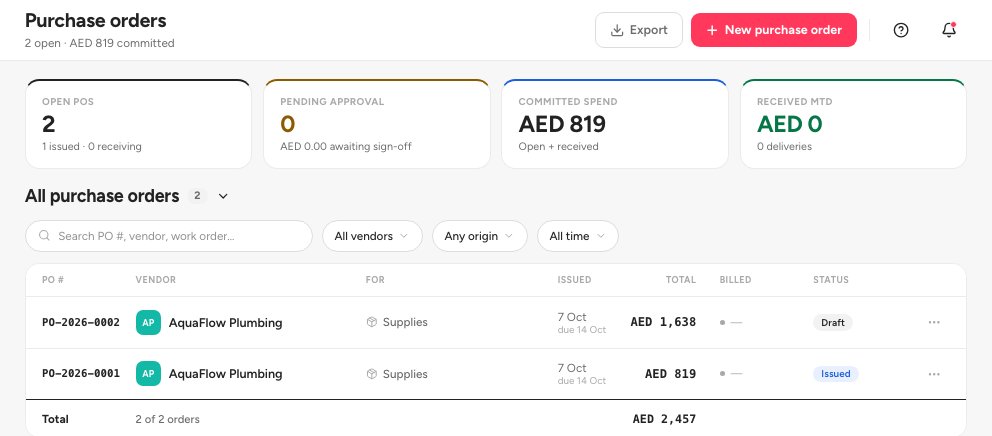
- Open, committed and pending approval
- Export
- New purchase order
Click New purchase order 3.
Under Order details & vendor, enter the Budget line 1: standalone spend posts there. Choose the Vendor 2. If the form also offers a Purchase type, pick Standalone for stock, supplies and capital items.
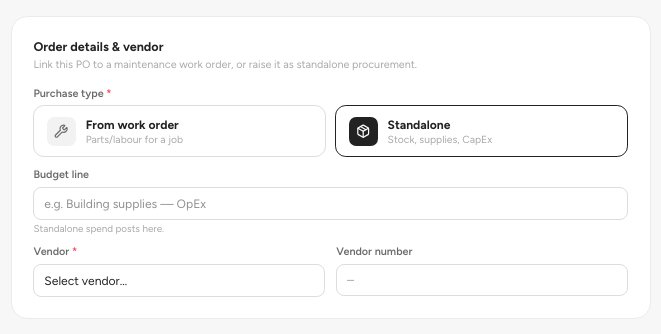
- Budget line
- Vendor
Under Line items, pick a Stock item or describe the line, then enter the quantity and the Unit price 1. The line total and the order total fill in.
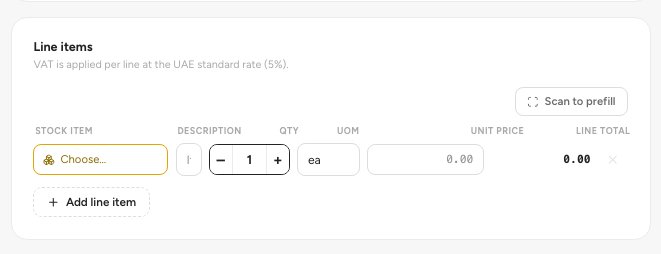
- Unit price
- Line total
Under Delivery & terms, set the Expected delivery date (required), Payment terms, Ship to and the notes. Add Terms & conditions from a template.
Click Save as draft to keep working later, or the button at the top right to send it on.
Important — An order of AED 10,000 or less is issued straight away: the button reads Issue purchase order. A larger order reads Submit for approval and waits for an approver.
Statuses
Approve, receive and bill
An approver opens the order and clicks Approve & issue. If a workflow routes purchase orders, the decision is made in Approvals instead.
When the goods arrive, open the order and click Record goods receipt 1. Enter the quantity received and the condition: Good, Partial or Damaged.
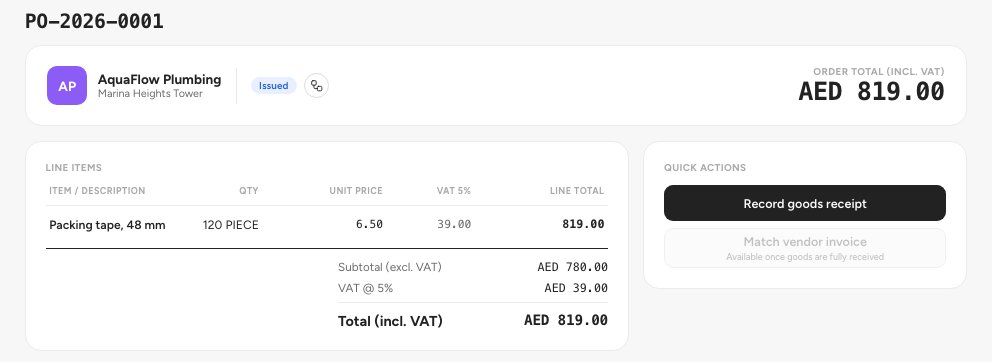
- Record goods receipt
- Status of the order
When the vendor invoice arrives, click Add bill on the order, or open Purchase › Invoice matching 1. It lists every vendor bill waiting on a three-way match of order, receipt and invoice.
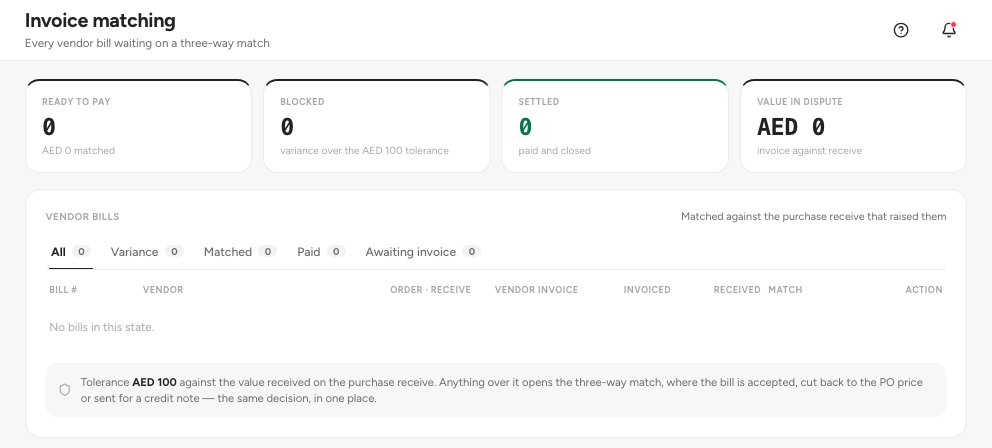
- Bills waiting to be matched
Resolve any difference, then post the bill.
What this does to stock and the ledger
The order itself is a commitment: it changes no stock and posts nothing. Recording goods receipt for a stock item adds the quantity received to its stock at cost: it debits the item's stock account (code 1401 by default) and credits the item's purchase account (5105 Materials & Supplies by default). Posting the vendor bill debits 5107 Vendor Services Expense (and 1455 VAT Input - Recoverable for the VAT) and credits 2101 Vendor Payables. Paying the bill debits 2101 and credits 1101 Operating Account. See What posts to your accounts automatically.
Where it sits in the chain
A purchase order is the middle of the buying chain: Vendor, then Purchase order, then Approval (above AED 10,000), then Goods receipt, then Vendor bill matched to order and receipt, then Payment. Receipt is where stock goes up. The bill and the payment are where what you owe the vendor goes up and then down. A cost with no order goes through Expenses instead.
FAQ
The vendor list is empty.
Add a vendor first. See Vendors.
Can I change an order after I submit it?
No. A submitted order is locked. Cancel it and raise a new one.
Can I bill part of an order?
Yes. Bill what has been received. The order shows Partially billed until every received quantity has a bill.
Related guides
Was this helpful?